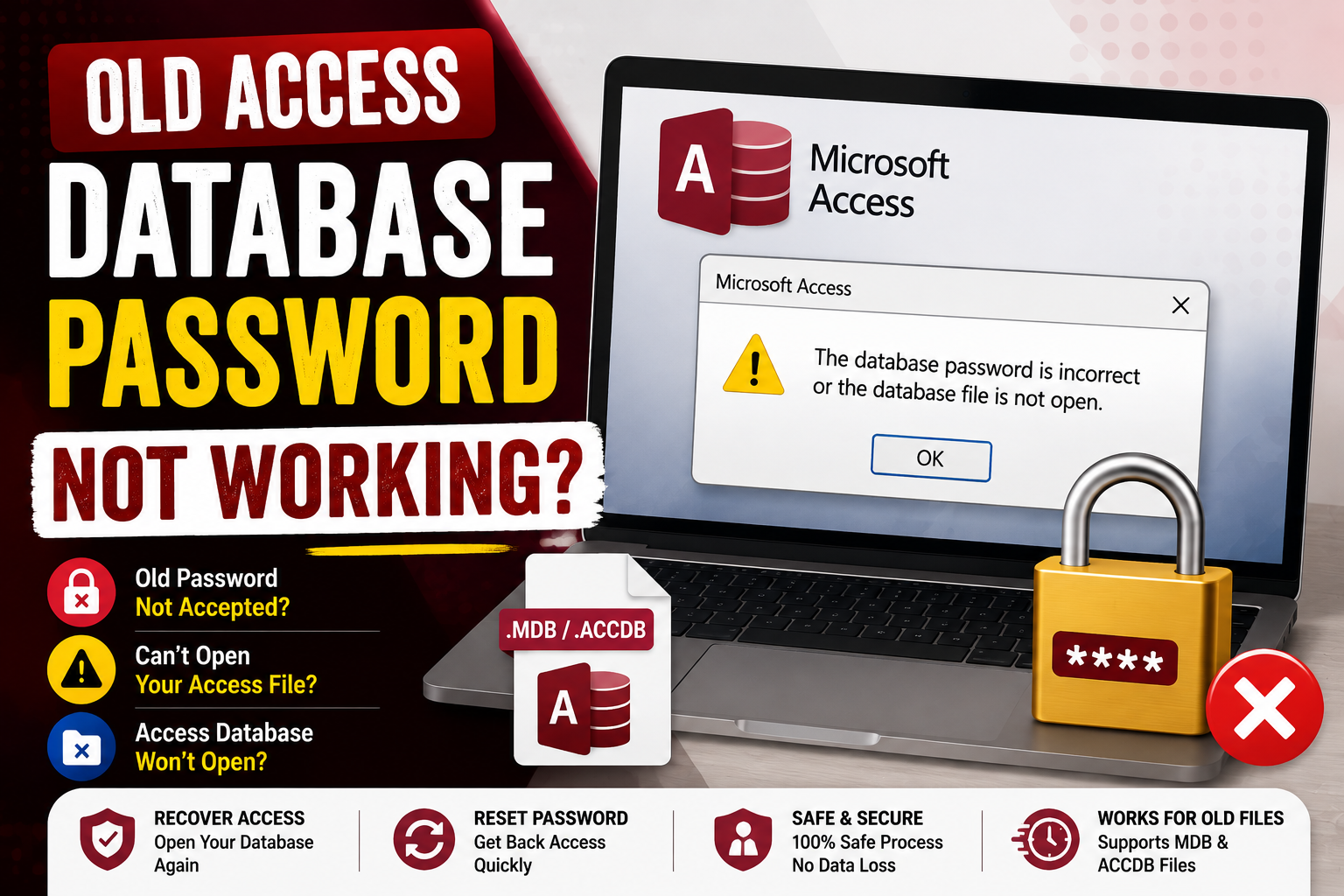
Losing access to an old Microsoft Access database because the password suddenly stops working can be frustrating. Whether you recently opened an archived MDB or ACCDB file or found an old database backup, seeing an “invalid password” error can bring your work to a halt.
The good news is that this problem is more common than you might think. In many cases, the password itself isn’t wrong. Instead, factors like keyboard settings, file corruption, version compatibility, or password encryption can prevent Access from accepting the correct password.
In this guide, we’ll explain why your old Access database password may not be working and walk you through the most effective ways to regain access safely.
Why Is My Old Access Database Password Not Working?
Several reasons can cause Microsoft Access to reject a password that previously worked.
1. Incorrect Keyboard Layout
Sometimes Windows switches to a different keyboard language without you noticing. Special characters, symbols, or even capitalization may change.
Solution:
- Check your keyboard language.
- Turn off Caps Lock and Num Lock if necessary.
- Carefully type the password again.
2. You’re Using the Wrong Database Version
Older Access databases (.mdb) were created using different encryption methods than modern .accdb files.
If you’re opening an old database in a newer version of Microsoft Access, compatibility issues may occur.
Solution:
- Open the database using the version it was created with, if possible.
- Use Microsoft Access Compatibility Mode.
3. Password Has Been Changed
If multiple people previously used the database, someone may have changed the password before the file was archived.
Ask former administrators or coworkers whether the password was updated before assuming it’s incorrect.
4. Database File Is Corrupted
Database corruption is another common reason passwords fail.
Corruption may occur because of:
- Improper shutdowns
- Hard drive issues
- Virus attacks
- File transfer errors
In these situations, Access may incorrectly report that the password is invalid.
5. Password Contains Special Characters
Older versions of Microsoft Access occasionally struggle with certain symbols or regional keyboard settings.
Try entering the password using the original keyboard layout if you remember which one was used.
6. You’re Opening a Copy Instead of the Original
Many users unknowingly try opening an outdated backup while expecting the latest password to work.
Verify you’re opening the correct database file.
How to Fix an Old Access Database Password That Isn’t Working
Try the following solutions one by one.
Method 1: Double-Check the Password
Before assuming you’ve forgotten it:
- Re-enter the password slowly.
- Check uppercase and lowercase letters.
- Verify keyboard language.
- Remove accidental spaces.
Sometimes the smallest typing mistake causes the problem.
Method 2: Repair the Database
If corruption is preventing authentication:
- Open Microsoft Access.
- Select Open.
- Click the arrow beside Open.
- Choose Open and Repair.
If corruption is minor, Access may repair the file successfully.
Method 3: Restore an Earlier Backup
If you regularly back up your databases, restore a version that still opens correctly.
This works well if corruption happened recently.
Method 4: Recover or Reset Password Using a Professional Tool
If your old Access database password still isn’t working after trying all manual solutions, a professional recovery tool can help you regain access quickly and safely. The SysTools Access Password Recovery Tool is designed to recover or remove passwords from password-protected MDB and ACCDB files without affecting the original database.
Key Features:
- Supports MDB & ACCDB Files: Recover or remove passwords from both old and new Access database files.
- Maintains Data Integrity: Preserves tables, forms, queries, reports, and other database objects.
- Quick Password Recovery: Retrieves or resets passwords in just a few simple steps.
- User-Friendly Interface: Easy-to-use software suitable for both beginners and professionals.
- Supports Multiple Access Versions: Compatible with legacy as well as modern Microsoft Access databases.
- Safe & Reliable Process: Performs recovery without modifying the original database content.
Steps to Recover the Access Database Password
- Download and install the SysTools Access Password Recovery Tool.
- Click Browse to add the password-protected MDB or ACCDB file.
- Click the Recover or Reset button to begin the password recovery process.
- View the recovered password and use it to unlock Access database file.
With just a few clicks, you can regain access to your old Access database and continue working without risking data loss.
Tips to Prevent Access Password Problems
To avoid similar issues in the future:
- Store passwords in a secure password manager.
- Create regular database backups.
- Document password changes.
- Avoid sharing passwords through email.
- Keep multiple backup copies of important databases.
These simple practices can save hours of troubleshooting later.
Frequently Asked Questions
Q1: Why does Access say my password is incorrect when I’m sure it’s right?
A: Possible reasons include keyboard layout changes, database corruption, version incompatibility, or opening the wrong copy of the database.
Q2: Can an old Access database password expire?
A: No. Microsoft Access passwords do not expire automatically. If the password no longer works, another issue is likely responsible.
Q3: Can I recover an old MDB password?
A: Yes. If manual methods fail, password recovery software can often recover or remove passwords from older MDB databases.
Q4: Can I open an Access database without the password?
A: If the database is password-protected, you’ll need the correct password or a trusted password recovery solution to regain access.
Final Thoughts
If your old Access database password is no longer working, don’t panic. The issue may be as simple as an incorrect keyboard layout or as complex as file corruption. Start by checking basic causes like typing mistakes, compatibility issues, and database repair options.
When those methods aren’t successful, use a reliable and trustworthy offline tool that can help users to restore access without damaging your database. Most importantly, establish a regular backup routine and securely manage passwords to prevent future lockouts.
Recovering access to an old Access database is usually possible—you just need the right troubleshooting approach.