
QuickBooks Desktop is one of the most trusted accounting solutions for small and medium-sized businesses. It helps companies manage invoices, payroll, inventory, expenses, taxes, and financial reports from one centralized platform. However, like any business software, QuickBooks Desktop requires regular maintenance to continue performing efficiently.
Many users only pay attention to QuickBooks when an error appears or the software starts slowing down. By then, issues such as damaged company files, outdated software, network interruptions, or Windows compatibility problems may already be affecting productivity. Instead of waiting for problems to occur, businesses should follow a proactive maintenance routine that improves stability, enhances security, and extends the life of their QuickBooks installation.
This complete maintenance checklist explains the essential tasks every QuickBooks Desktop user should perform regularly. Whether you work in single-user mode or operate a multi-user environment, these best practices can help reduce unexpected downtime and improve overall efficiency.
Why Regular Maintenance Matters
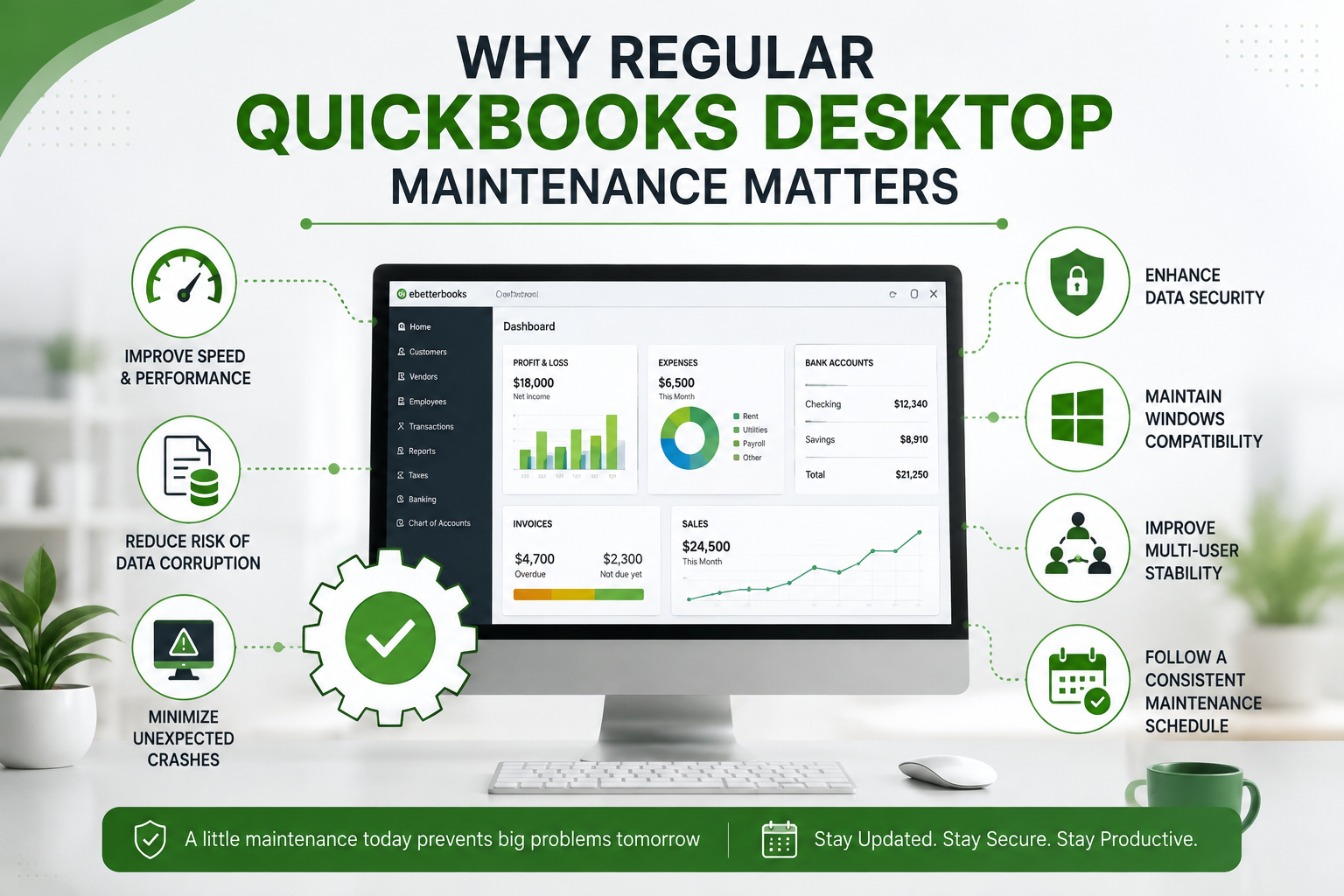
Routine maintenance is much more than installing occasional updates. It involves monitoring your accounting environment, protecting company data, optimizing system performance, and preventing small issues from becoming expensive problems.
A consistent maintenance schedule helps you:
- Improve software speed and responsiveness
- Reduce the risk of company file corruption
- Minimize unexpected crashes
- Enhance data security
- Maintain compatibility with Windows updates
- Improve multi-user stability
- Reduce troubleshooting time
- Extend the lifespan of your accounting system
Businesses that perform routine maintenance generally experience fewer interruptions than those that only react after problems develop.
1. Keep QuickBooks Desktop Updated
Software updates include security improvements, bug fixes, compatibility enhancements, and performance optimizations.
Whenever Intuit releases an update, install it after verifying compatibility with your business environment.
Benefits include:
- Better security protection
- Improved payroll functionality
- Bug fixes
- Enhanced stability
- Better compatibility with Windows
Before installing major version upgrades, always verify that your system meets the latest hardware and software requirements.
If your current version is becoming outdated or unsupported, it may be the right time to get QuickBooks Desktop upgrade assistance to ensure a smooth transition without risking important company data.
2. Verify and Rebuild Company Data Regularly
Company files continuously grow as transactions accumulate over time.
Even if QuickBooks appears to work normally, minor data inconsistencies can slowly develop.
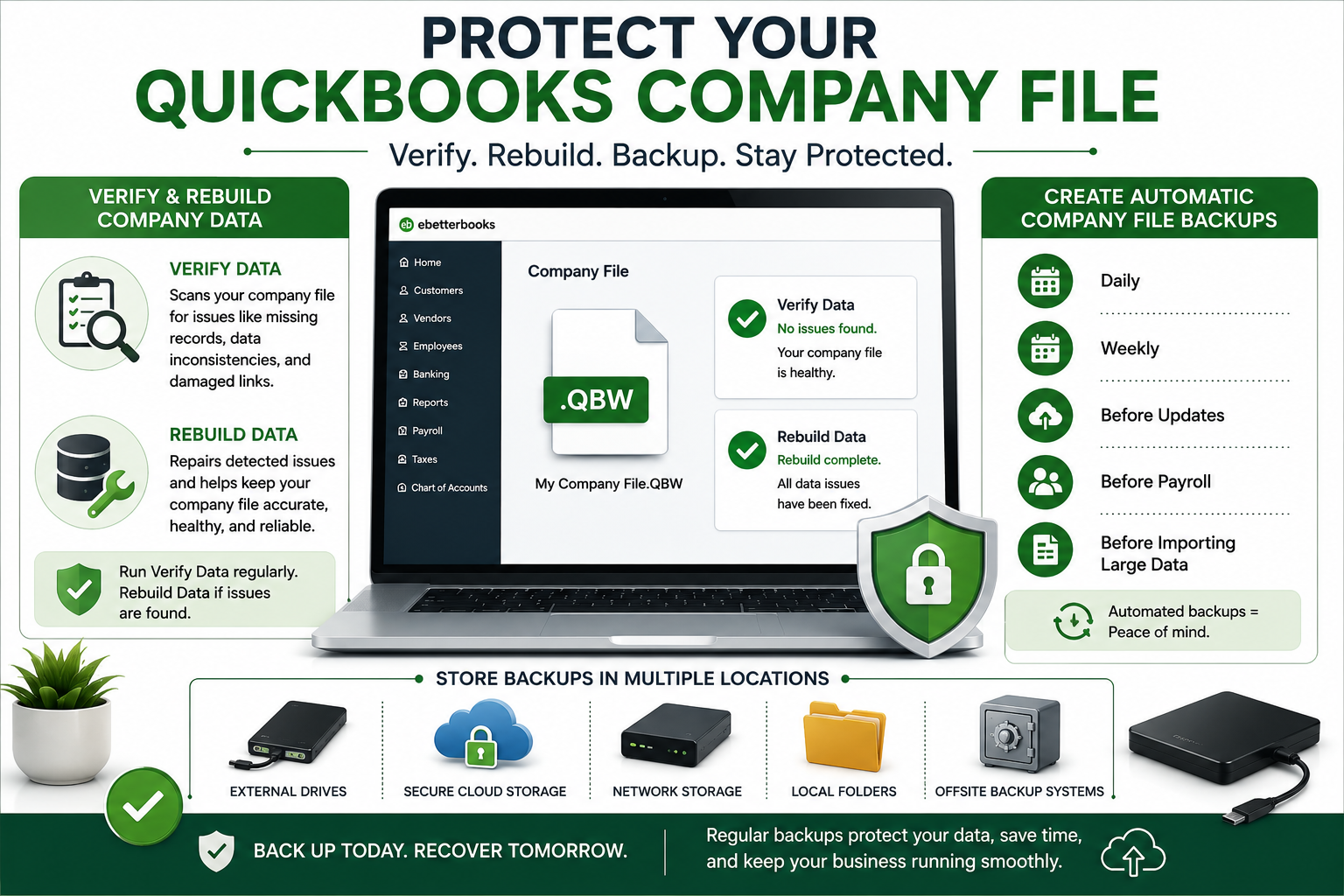
The Verify Data utility checks for:
- Missing records
- Data inconsistencies
- Damaged links
- Company file errors
If issues are detected, use the Rebuild Data utility to repair the file.
Running these utilities every few weeks helps prevent major file corruption later.
3. Create Automatic Company File Backups
Backups are one of the simplest yet most valuable maintenance practices.
Never rely on a single company file.
Create backups:
- Daily
- Weekly
- Before updates
- Before payroll processing
- Before importing large datasets
Store backups in multiple locations such as:
- External drives
- Secure cloud storage
- Network storage
- Offsite backup systems
Regular backups allow quick recovery if your computer fails or files become damaged.
4. Monitor Company File Size
Large company files often lead to:
- Slow loading
- Search delays
- Report generation issues
- Performance degradation
Review file size periodically and archive old records when appropriate.
Businesses with many years of accounting history should develop a long-term data management strategy to keep performance consistent.
5. Keep Windows Fully Updated
QuickBooks Desktop relies heavily on Windows components.
Outdated Windows installations can create:
- Printing issues
- Installation failures
- Network errors
- Security vulnerabilities
Enable automatic Windows updates and install recommended security patches regularly.
Keeping your operating system current also improves compatibility with newer QuickBooks releases while reducing software conflicts.
6. Optimize Your Computer’s Storage
QuickBooks Desktop performs best when it has access to sufficient system resources. Over time, temporary files, unused applications, and limited disk space can slow down both Windows and QuickBooks.
Include these storage maintenance tasks in your routine:
- Remove temporary files regularly.
- Uninstall software you no longer use.
- Keep at least 20% of your hard drive free.
- Use an SSD for better performance if possible.
- Organize business files to reduce clutter.
A clean and organized system helps QuickBooks launch faster, open company files more efficiently, and reduce delays during daily operations.
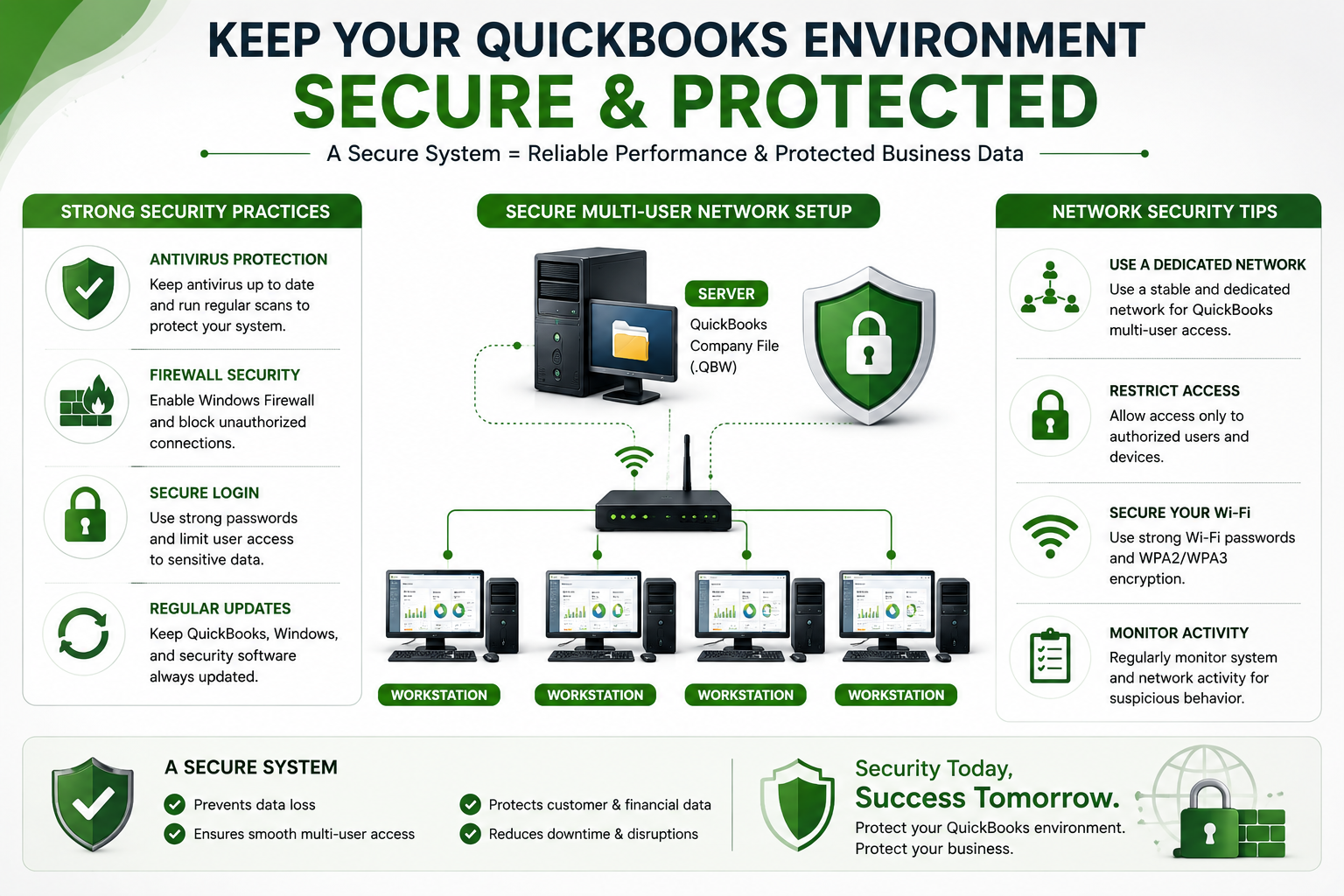
7. Check Your Network Health (For Multi-User Environments)
Businesses using QuickBooks Desktop in multi-user mode should regularly inspect their network. Even minor connectivity issues can lead to file access problems, slow performance, or interrupted workflows.
A basic network maintenance checklist includes:
- Ensure all computers are connected to a stable network.
- Verify the host computer is always accessible.
- Confirm firewall settings allow QuickBooks services.
- Check shared folder permissions.
- Test network speed periodically.
- Restart networking equipment when needed.
A reliable network minimizes interruptions and supports efficient collaboration between multiple users working on the same company file.
8. Review User Access and Permissions
As businesses grow, employees may change roles or leave the company. Outdated user accounts and unnecessary permissions can create both security and operational risks.
Review user access on a regular basis by:
- Removing inactive users.
- Updating passwords.
- Assigning role-based permissions.
- Limiting administrative privileges.
- Reviewing login activity.
Proper permission management helps protect sensitive financial information while ensuring employees have access only to the tools they need.
9. Scan for Malware and Viruses
Security threats can affect QuickBooks Desktop just as easily as any other business application. Malware may corrupt files, slow system performance, or compromise sensitive accounting data.
Protect your system by:
- Installing reputable antivirus software.
- Scheduling regular malware scans.
- Keeping virus definitions updated.
- Avoiding suspicious email attachments.
- Downloading software only from trusted sources.
Combining antivirus protection with safe browsing habits significantly reduces the risk of security-related disruptions.
10. Maintain Your Company File
Your QuickBooks company file grows with every invoice, payment, payroll entry, and journal transaction. Without regular maintenance, larger files can become slower to process.
Good company file management includes:
- Reviewing inactive customers and vendors.
- Cleaning duplicate entries.
- Archiving historical information when appropriate.
- Correcting data inconsistencies promptly.
- Running financial reports to identify unusual transactions.
Regular file maintenance improves reporting accuracy and overall system responsiveness.
11. Monitor Third-Party Integrations
Many businesses integrate QuickBooks Desktop with CRM platforms, payment processors, inventory systems, or e-commerce applications. While these integrations improve efficiency, outdated or incompatible tools can negatively impact performance.
Periodically review:
- Installed add-ons.
- Integration compatibility.
- API connections.
- Synchronization logs.
- Plugin updates.
Removing unused integrations reduces unnecessary background processes and lowers the chances of software conflicts.
12. Schedule Routine Performance Reviews
Rather than waiting for issues to appear, establish a monthly or quarterly maintenance review.
Evaluate areas such as:
- Startup speed.
- Report generation time.
- Backup completion.
- Network performance.
- Error frequency.
- User feedback.
- Storage availability.
Tracking these metrics over time helps identify trends before they develop into major operational problems.
These regular reviews play an important role in keeping QuickBooks Desktop running smoothly, allowing businesses to maintain consistent productivity while minimizing downtime caused by avoidable technical issues.
13. Train Employees on QuickBooks Best Practices
Even a well-maintained system can experience problems if users follow inconsistent processes. Employee training is an often-overlooked part of software maintenance.
Encourage users to:
- Close QuickBooks properly after use.
- Avoid forcing the program to shut down.
- Follow company backup procedures.
- Report unusual errors immediately.
- Use approved workflows for data entry.
- Avoid storing company files in unsupported locations.
Well-trained employees help maintain data accuracy and reduce the likelihood of accidental file damage.
14. Document Your Maintenance Routine
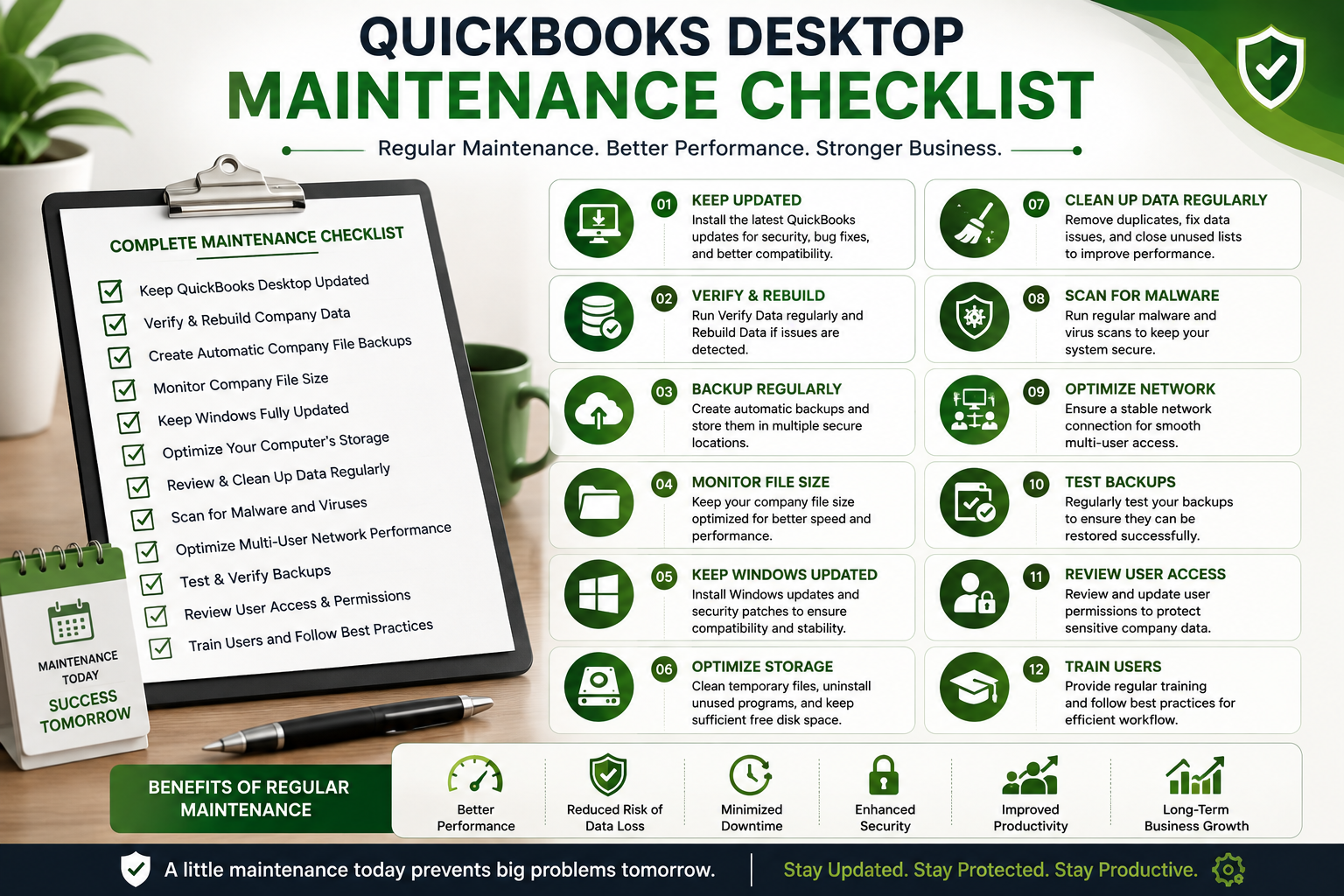
Creating a documented maintenance checklist ensures important tasks are completed consistently, even if responsibilities change within your organization.
Your maintenance log should include:
- Backup dates.
- Software update history.
- Windows update records.
- Antivirus scan results.
- Company file verification dates.
- Network inspections.
- Hardware maintenance activities.
Keeping detailed records also makes troubleshooting easier if issues arise in the future.
15. Follow a Regular QuickBooks Desktop Maintenance Schedule
Consistency is the key to maintaining long-term QuickBooks Desktop performance. Instead of performing maintenance only when problems occur, businesses should follow a structured schedule that covers essential tasks throughout the year.
A recommended maintenance routine includes:
Daily Maintenance Tasks
- Close QuickBooks properly after completing work.
- Verify that backups are completed successfully.
- Monitor unusual performance issues.
- Ensure all users save their work correctly before exiting.
Daily habits prevent small issues from affecting important accounting operations.
Weekly Maintenance Tasks
- Review company file activity.
- Check available storage space.
- Confirm antivirus scans are running.
- Review recent error messages.
- Verify network connectivity for multi-user setups.
Weekly checks help identify early warning signs before they become major problems.
Monthly Maintenance Tasks
- Run QuickBooks Verify Data utility.
- Review user permissions.
- Remove unnecessary temporary files.
- Check for QuickBooks and Windows updates.
- Review third-party integrations.
- Test backup restoration when possible.
Monthly maintenance keeps your QuickBooks environment stable and reliable.
Quarterly Maintenance Tasks
- Review overall system performance.
- Evaluate hardware requirements.
- Archive older company data if needed.
- Review security settings.
- Update employee training procedures.
- Check whether a QuickBooks version upgrade is required.
Quarterly reviews allow businesses to plan improvements instead of reacting to unexpected issues.
Common QuickBooks Desktop Maintenance Mistakes to Avoid
While regular maintenance improves performance, certain mistakes can create additional problems. Avoiding these common errors helps protect your company data and ensures smoother operations.
1. Ignoring Software Updates
Some businesses delay updates because they worry about disruptions. However, running outdated software can create compatibility issues and prevent access to important security improvements.
Always review updates carefully and plan installations during less busy business hours.
2. Not Creating Regular Backups
Many users assume their company file will always remain accessible. However, hardware failures, accidental deletion, malware, or file corruption can happen unexpectedly.
A reliable backup strategy ensures your financial information can be restored quickly when needed.
3. Storing Company Files in Unsafe Locations
Saving QuickBooks company files on unsupported external devices or unstable network locations can increase the risk of file damage.
Use recommended storage locations and ensure all users follow proper file access procedures.
4. Running Too Many Background Applications
Multiple applications running at the same time can consume system resources and slow down QuickBooks Desktop.
Close unnecessary programs, especially when performing tasks such as:
- Payroll processing
- Large reports
- Company file backups
- Data imports
Maintaining sufficient system resources improves QuickBooks responsiveness.
5. Skipping Professional Support During Major Changes
Major changes such as upgrading QuickBooks versions, moving company files, or changing network configurations require careful planning.
Incorrect migration steps can result in missing data, compatibility problems, or unexpected errors. In these situations, businesses should consider expert guidance to reduce risks and complete the transition efficiently.
Benefits of Following a QuickBooks Desktop Maintenance Checklist
A proper maintenance routine provides several long-term advantages, including:
Improved Performance
Regular optimization keeps QuickBooks Desktop responsive and reduces slow loading times.
Better Data Protection
Consistent backups, security checks, and file verification help safeguard important financial records.
Reduced Downtime
Preventive maintenance reduces unexpected crashes, connection issues, and software interruptions.
Easier Troubleshooting
Maintained systems are easier to diagnose because updates, backups, and changes are properly documented.
Increased Productivity
When QuickBooks works efficiently, employees can focus more on business operations instead of technical problems.
Final Thoughts
QuickBooks Desktop plays an important role in managing daily accounting activities, but maintaining its performance requires ongoing attention. A proactive approach that includes regular updates, company file checks, backups, security monitoring, and system optimization can significantly improve reliability.
Businesses should treat QuickBooks maintenance as an essential part of their accounting workflow rather than an occasional task. By following a structured checklist, users can prevent many common problems and maintain a stable accounting environment.
Whether you are managing a small business file or a complex multi-user setup, proper maintenance ensures your software remains efficient and dependable. Taking preventive steps today can save valuable time, protect financial data, and support smoother business operations in the future.
With the right practices in place and timely support when needed, businesses can continue keeping QuickBooks Desktop running smoothly while preparing their systems for future improvements and upgrades.