
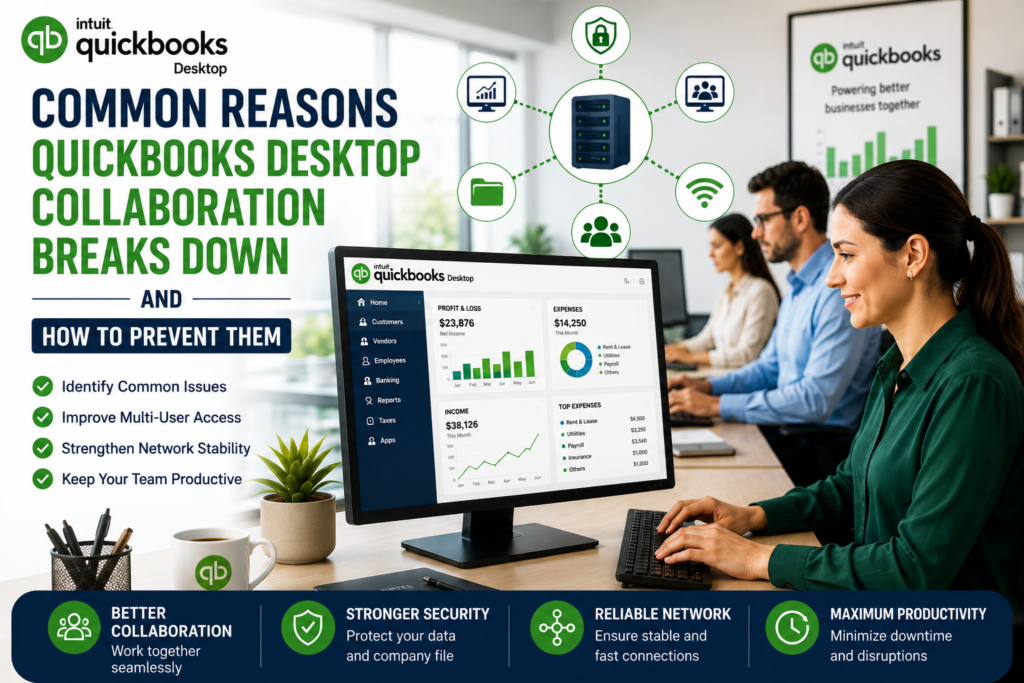
Managing business finances becomes much easier when multiple team members can work together in QuickBooks Desktop. Accountants, bookkeepers, payroll managers, and business owners often rely on the software’s multi-user capabilities to complete daily accounting tasks efficiently. However, collaboration can quickly break down when network issues, hosting conflicts, damaged company files, or incorrect user settings interrupt access.
These disruptions often lead to delays, data conflicts, and reduced productivity. Fortunately, most collaboration problems can be prevented with the right setup and ongoing maintenance. By understanding the common causes of these issues, businesses can keep their accounting workflows running smoothly while minimizing downtime.
This guide explains why QuickBooks Desktop collaboration fails, how to recognize the warning signs, and the best practices to ensure a reliable multi-user environment.
Why Multi-User Collaboration Matters
QuickBooks Desktop is designed to support multiple users working on the same company file simultaneously. This feature allows different departments to complete accounting tasks without waiting for one another.
Benefits include:
- Faster financial processing
- Improved teamwork between departments
- Better productivity
- Reduced manual data sharing
- Accurate real-time financial information
When collaboration stops working, employees may lose access to the company file, receive unexpected errors, or find themselves unable to complete important accounting tasks.
Common Reasons QuickBooks Desktop Collaboration Breaks Down
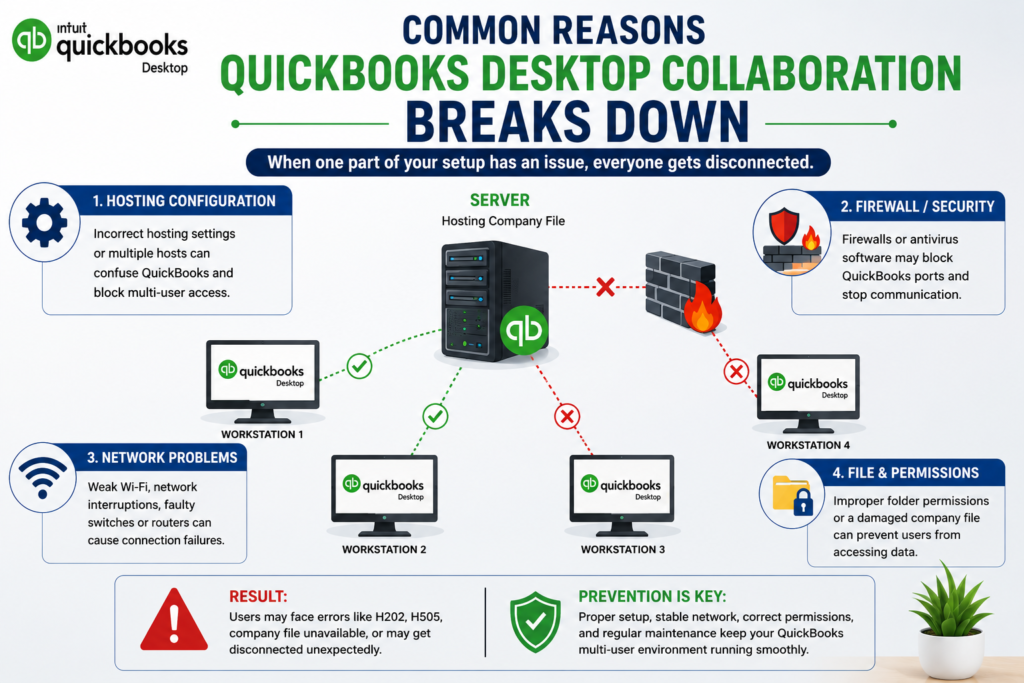
1. Incorrect Hosting Configuration
One of the most common causes of collaboration issues is improper hosting settings.
Only the server computer that stores the company file should host multi-user access. If multiple workstations are mistakenly configured as hosts, QuickBooks can become confused about where the company file should be accessed.
Common symptoms include:
- Multi-user mode not working
- Users disconnected unexpectedly
- Company file inaccessible
- Network communication failures
Verifying hosting settings on every workstation is one of the simplest ways to avoid these problems.
2. Damaged Company File
A damaged company file can interrupt communication between multiple users.
Corruption may occur because of:
- Improper shutdowns
- Network interruptions
- Hard drive failures
- Large company files
- Software crashes
Warning signs include:
- Slow loading
- Unexpected freezing
- Data verification errors
- Missing transactions
- Frequent crashes
Regular backups and company file verification help reduce these risks.
3. Firewall or Security Software Blocking QuickBooks
Firewalls and antivirus programs help protect business systems but may accidentally block QuickBooks communication.
Blocked ports prevent workstations from connecting to the server.
Potential symptoms:
- H202 errors
- Unable to locate server
- Company file unavailable
- Users randomly disconnected
Administrators should ensure QuickBooks ports are properly configured and trusted by security software.
4. Windows Network Problems
QuickBooks Desktop depends on a healthy Windows network.
Problems such as:
- Weak Wi-Fi
- Network interruptions
- Incorrect DNS settings
- Faulty switches
- Router failures
can all affect multi-user access.
Whenever possible, businesses should use wired Ethernet connections for greater stability.
5. Folder Permission Errors
The folder containing the QuickBooks company file requires proper Windows permissions.
If users lack:
- Read access
- Write access
- Modify permissions
QuickBooks may prevent access or force users into limited functionality.
Administrators should regularly review shared folder permissions.
6. Outdated QuickBooks Desktop
Running outdated versions can create compatibility issues between workstations.
Updates often include:
- Security improvements
- Bug fixes
- Multi-user enhancements
- Network stability improvements
Keeping every workstation updated reduces collaboration issues.
7. Database Server Manager Problems
QuickBooks Database Server Manager allows multiple users to access the company file.
Problems may occur if:
- The service stops running
- Database scans fail
- Company folders aren’t scanned
- Service configuration changes unexpectedly
Restarting the Database Server Manager and rescanning folders often resolves these issues.
8. Incorrect User Permissions
Each employee should have access only to the areas required for their responsibilities.
Improper user permissions can lead to:
- Access denied messages
- Missing menu options
- Inability to edit transactions
- Login problems
Reviewing user roles regularly keeps collaboration secure and efficient.
Warning Signs That Collaboration Is Failing
Businesses should watch for these early indicators:
- Users cannot open the company file
- Frequent connection interruptions
- Slow performance during multi-user sessions
- Company file locking errors
- Random QuickBooks freezes
- Error messages related to networking
- Workstations losing server connection
- Delayed synchronization between users
Addressing these signs early helps prevent larger operational disruptions.
Best Practices for Reliable Multi-User Collaboration
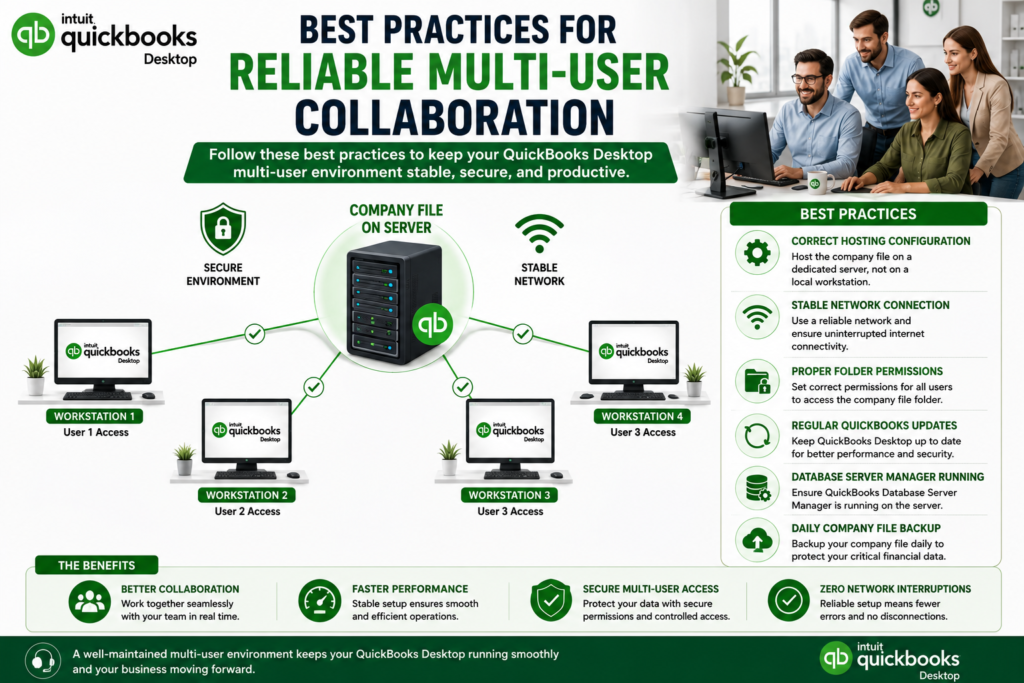
Maintain a Stable Network
Reliable networking forms the foundation of successful QuickBooks collaboration.
Businesses should prioritize a stable QuickBooks network configuration by:
- Using wired Ethernet whenever possible
- Replacing outdated networking hardware
- Monitoring network performance
- Avoiding overloaded Wi-Fi connections
- Keeping routers and switches updated
A stable network significantly reduces communication interruptions.
Use Professional Network Management
Organizations that depend heavily on QuickBooks often benefit from specialized QuickBooks Network & Multi-User Solutions to optimize server configuration, user permissions, hosting settings, firewall rules, and overall network performance.
Professional network optimization helps minimize downtime while improving collaboration between multiple employees working simultaneously.
Prevent Unexpected Mode Changes
Some businesses experience situations where QuickBooks Switches to Single-User Mode, interrupting collaborative workflows and preventing multiple employees from working at the same time.
To avoid this issue:
- Verify hosting settings regularly.
- Schedule file maintenance outside business hours.
- Close exclusive-access features before peak work periods.
- Ensure all users exit QuickBooks properly.
- Keep Database Server Manager functioning correctly.
Following these practices helps maintain uninterrupted multi-user access.
How to Keep Your Company File Healthy
Routine maintenance improves long-term performance.
Recommended tasks include:
- Verify Data weekly
- Rebuild Data when necessary
- Create daily backups
- Archive old data
- Monitor company file size
- Store backups securely
- Test backup restoration periodically
Healthy company files reduce the risk of collaboration failures.
Importance of Employee Training
Technology alone cannot prevent collaboration issues.
Employees should understand:
- Proper login procedures
- Safe shutdown methods
- How to avoid forced computer restarts
- Backup policies
- Reporting unusual QuickBooks behavior promptly
Well-trained users often prevent accidental data corruption.
Benefits of Regular Software Updates
Updating QuickBooks Desktop provides:
- Better security
- Improved network compatibility
- Enhanced stability
- Performance improvements
- Bug fixes
- Better Windows compatibility
Businesses should update both QuickBooks Desktop and Windows regularly.
Creating a Reliable Backup Strategy
Every organization should have a dependable backup plan.
A complete strategy includes:
- Automatic daily backups
- Offsite backup storage
- Cloud backup copies
- External drive backups
- Regular restoration testing
Reliable backups reduce recovery time if unexpected issues occur.
Monitoring System Performance
Performance monitoring helps identify problems before they become serious.
Administrators should monitor:
- Server performance
- Available storage
- Memory usage
- CPU utilization
- Network traffic
- Windows Event Logs
Routine monitoring supports long-term QuickBooks stability.
When Professional Assistance May Be Needed
Some collaboration issues require advanced troubleshooting, especially when they involve damaged company files, persistent hosting conflicts, Windows networking problems, or recurring multi-user errors. If basic troubleshooting steps do not resolve the issue, working with experienced QuickBooks professionals can help identify the root cause more quickly and reduce downtime. Expert assistance can also ensure that server settings, permissions, and network configurations follow best practices for long-term reliability.
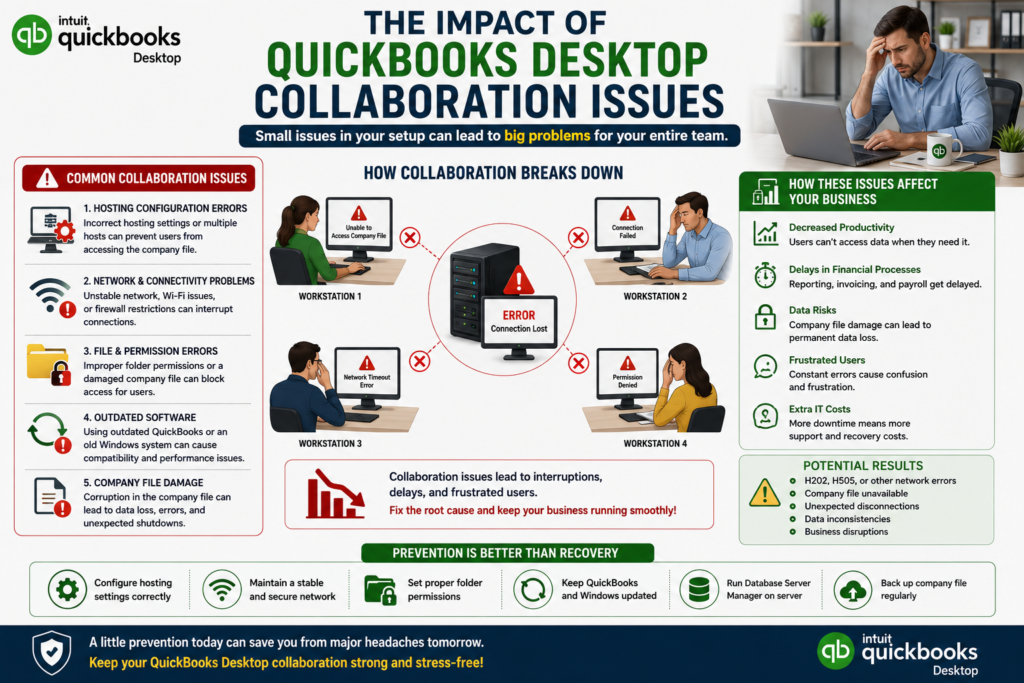
Conclusion
QuickBooks Desktop collaboration problems can disrupt accounting operations, delay financial reporting, and reduce overall productivity. Fortunately, most issues stem from preventable causes such as incorrect hosting settings, outdated software, firewall restrictions, damaged company files, or unstable network environments.
By maintaining updated systems, performing routine company file maintenance, ensuring proper user permissions, and investing in a stable network infrastructure, businesses can significantly improve the reliability of their multi-user experience. Regular monitoring, employee training, and proactive maintenance not only prevent unexpected interruptions but also help teams collaborate more efficiently and confidently.
A well-managed QuickBooks environment allows businesses to focus on growth instead of troubleshooting, ensuring that accounting processes remain smooth, secure, and productive every day.